Here you can find digitally signed mouse automation software utilities for Windows 11 and 10. The mouse is one of the most important input methods to a computer for interacting with various applications running on it. Whether you wish to automate a repetitive process like clicking at multiple screen locations, automate repetitive UI testing, perform stress testing, bulk processing for data entry or office tasks, automated form submission, just move the mouse cursor to keep your Windows computer awake, count mouse clicks, or even lock the mouse cursor to a predefined rectangular screen area, you will find lots of mouse automation utilities here.
Mouse Automation Software Applications for Windows 10 / 11
The software utilities presented here can perform simple mouse clicking, mouse movement, etc., and can be used as sophisticated productivity engines that save human time and effort, reduce physical strain, and bridge the gap between human input and complex digital workflows. Whether you need assistance in professional data entry, repetitive software testing, or anything that requires repetitive actions, these software tools offer a range of solutions from "no-code" software scripts to a mouse recorder, and tools to view or count mouse clicks.
When using any of the listed software utilities, ensure that you understand and accept the appropriate terms and conditions of the software, game, website, or any app with which you are interacting. Yes, Windows does allow the detection of simulated or injected mouse actions, as displayed by the Mouse Click Viewer listed above. Before using any of the software above, fully understand and accept the applicable terms and conditions, select the appropriate software, learn the features of the software, take into consideration any pitfalls of the software in performing the task at hand, do appropriate tests, and only then use it for its actual purpose. The mouse automation software utilities enumerated above offer free trial downloads, are digitally signed, scanned with VirusTotal, trusted by Microsoft SmartScreen, and can be used on Windows 10 and 11.
Automate Mouse Clicking at Single or Multiple Screen Locations
When you wish to automate mouse clicking at single or multiple screen locations, you can use Auto Mouse Click by MurGee.com, which allows you to create a script that you can run to automate mouse clicking at desired screen location(s). This application also allows you to simulate keystrokes along with mouse input and screen touch to assist in mouse click, movement, and dragging automation. Whether you want slow, fast, or super-fast automated mouse clicking, you can configure the time delay between clicks and customize CPS (Clicks per Second) as per your purpose for automated mouse clicking.
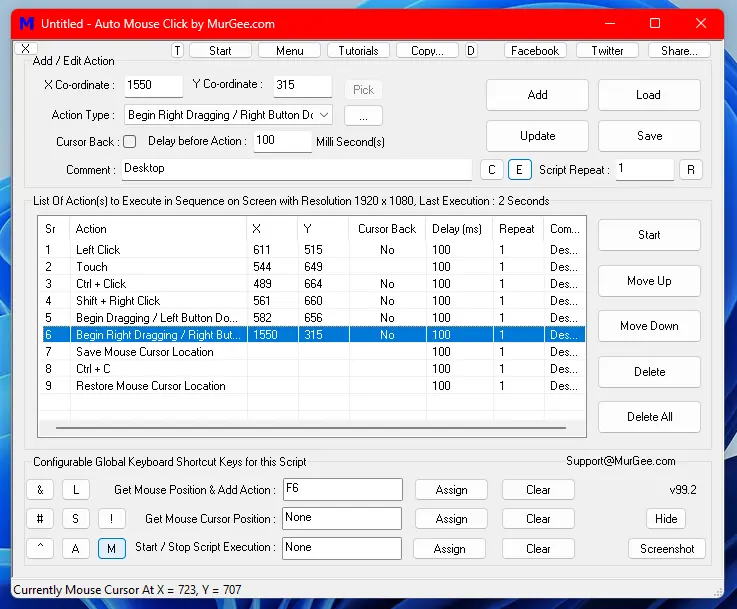
Auto Mouse Click by MurGee.com allows you to simulate mouse clicking on your computer screen at a fixed screen location, at the current mouse cursor location, or in a random screen area bounded by a configurable rectangular screen area. You can also simulate mouse clicking with keyboard keys like CTRL Click, Shift Click, etc. Yes, Right Click or Double Click with control keys is also available in this mouse automation software to be simulated or automated. You can also record mouse movement and clicking with the inbuilt Macro Recorder Action easily when you have a large sequence of mouse movements, clicks, etc., to be automated.
Apart from mouse clicking, you can also simulate mouse cursor movement to a configurable screen location, by an offset in the horizontal and/or vertical direction, and you can also simulate mouse movement from a configured screen location to a different screen position configured with a random angle and radius. You can even save the current mouse cursor location and, later in the script execution, move the mouse cursor back to the previously saved mouse cursor location. Animating mouse cursor movement from the current mouse cursor location to a configurable screen location is also supported by this mouse clicking software.
The Window Clicker Action in this automation utility allows you to simulate a left mouse click on a window irrespective of its screen location, so that even if the window changes location, the left click will be simulated at the correct position and will not be dependent on the screen location of the selected application window.
The Touch Action is also like a left mouse click but offers a touch indicator configurable from the Accessibility -> Mouse pointer and touch settings of Windows 11 / 10. This can be really handy when you wish to view the screen location where the script is simulating a screen touch at any given point in time. A Touch Swipe Action is also available, which allows you to simulate a touch swipe from one screen location to another. You can think of Touch Swipe as mouse dragging to drag a screen object from one screen location to another.
This software also offers a configurable Script Execution Indicator and a configurable Cursor Locator, which displays an animated circular indicator where a mouse click is executed by the script. The Script Execution Indicator and Cursor Locator can be configured from the Other Settings of the software, where you can also configure whether the mouse cursor is changed for the duration of the script execution for a visual indication of script execution.
Record and Playback Mouse and Keyboard Actions
This mouse automation software, named Macro Recorder, can be used to record and playback mouse actions like mouse movement, clicking, etc. This Macro Recorder works on the latest Windows operating systems like Windows 11, Windows 10, etc. A configurable keyboard shortcut allows you to control the recording and playback of recorded macros. This can be really handy when you need to do a task that requires repetitive mouse and keyboard actions, such as for software testing, workflow optimization, system maintenance, tutorials, and presentations.
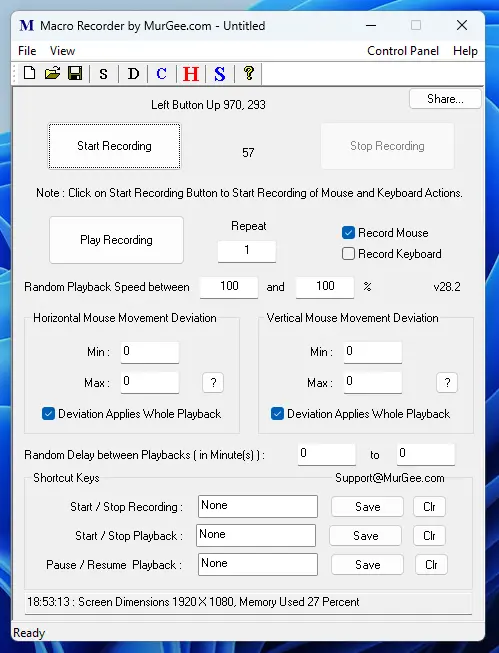
To record mouse or keyboard actions, you can click on the Start Recording button or configure a keyboard shortcut to start and stop recording. Once recording is started, you can manually perform mouse and keyboard actions, and the Macro Recorder will record your actions. You can click on the Stop Recording button to stop recording or press the keyboard shortcut again to stop the recording.
To view recorded mouse and keyboard actions, you can right-click on the software and, from the context menu, click on the Recording Data menu item. In the Recording Data screen, you can view the screen coordinates of mouse actions, the pixel color beneath the mouse action coordinates, the time delay in milliseconds for the actions, the keystroke name for keyboard actions, and other parameters that can be enabled from the settings of the software. You can even edit the parameters of the recorded action from the Recording Data screen or enable/disable selected mouse or keyboard actions.
You can also control the playback speed of the recorded mouse and keyboard actions. Configurable keyboard shortcuts allow you to start/stop recording, start/stop playback, and pause/resume playback. Having configurable keyboard shortcuts to control the actions of Macro Recorder can be really handy. You can also configure audible alerts to be notified using text-to-voice conversion when recording is started or stopped from the settings of the software. A beep can also be configured to sound when the recording playback is stopped from the settings.
Apart from recording and playback features, this Macro Recorder allows you to capture a screenshot of a selected screen area and has a clipboard text monitor feature to display text on the clipboard in a small popup window. There is also an inbuilt mouse cursor highlighter to assist you in locating the mouse cursor with a configurable circle around the mouse cursor position. You can also launch various Control Panel applets related to Macro Recorder features, like display settings, mouse properties, mouse settings, typing, sound, and clipboard.
Automate Mouse Cursor Movement to Keep Computer Awake
You can use Auto Mouse Mover to simulate and automate mouse cursor movement with full control, helping to keep your Windows computer awake when performing long tasks. Automated mouse movements by this mouse automation software can be controlled in various ways, such as using a keyboard shortcut or when there is no manual keyboard/mouse input to the computer. The automated mouse cursor movements can be configured to be horizontal or vertical mouse movements. You can also record mouse movements with the inbuilt Macro Recorder so that when you want this software utility to automate mouse movements, the recorded mouse actions are played back as recorded earlier.
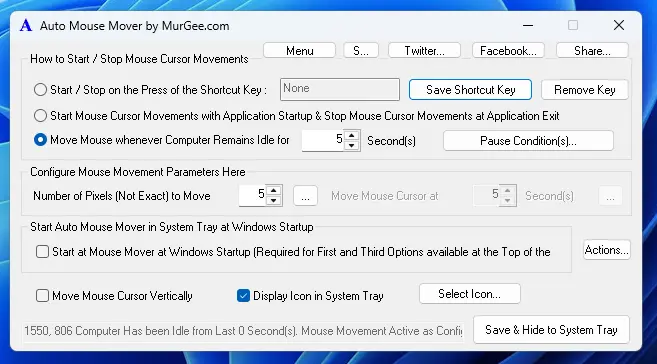
The automated mouse cursor movements can be paused and resumed using pause conditions available on the main screen of the software. Date and time control, process control, window appearance, and keyboard shortcuts can be configured to pause or resume automated mouse cursor movements. To indicate whether Auto Mouse Mover is working, stopped, or paused, the icon of the software changes automatically to give you a visual clue about the current status of automated mouse movements. You can also configure audible alerts with the help of inbuilt text-to-voice conversion from the settings of the software to inform you when the automated mouse cursor movements are started or stopped.
This mouse movement software utility can be configured to auto-start with Windows so that the application starts automatically and can be controlled from the system tray icon. Yes, you can also enable the auto-exit feature so that the software automatically terminates itself after a configured time duration.
Lock Mouse Cursor to predefined Screen Rectangular Area
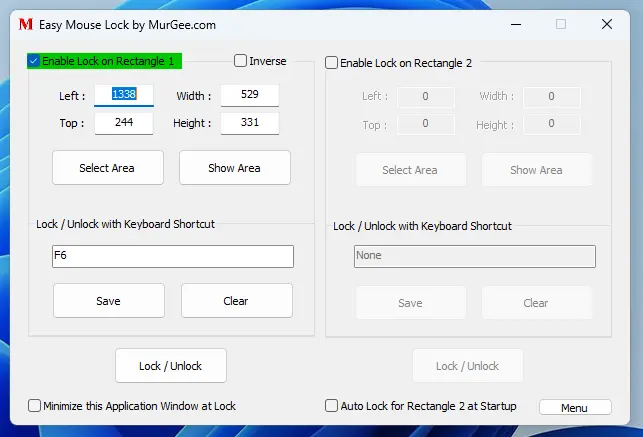
The Easy Mouse Lock utility can be used to lock or limit mouse cursor movements to a predefined rectangular screen area. A configurable keyboard shortcut can be used to easily lock or unlock mouse cursor movements. The mouse screen lock is released, and the mouse cursor is free to move across the screen area when the software is closed. You can find more information about Easy Mouse Lock and other mouse control applications at the Mouse Control Software website.
Count Mouse Clicks
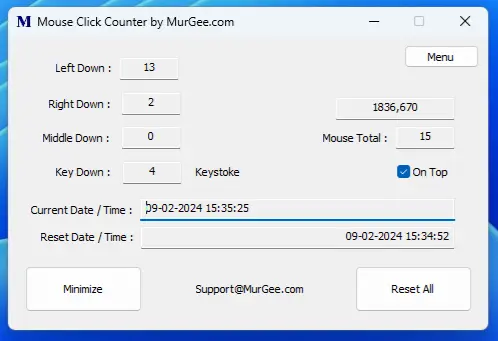
With Mouse Click Counter software, you can count mouse clicks. It can be handy when you want to keep track of automated or manual mouse clicks on your Windows computer. It can also count keystrokes and can be positioned to always stay on top. You can even reset the counted mouse and keyboard actions to start counting from zero again. The current mouse cursor position is also displayed on the main screen of Mouse Click Counter, which can be handy as well.
View Mouse Clicks
You can use Mouse Click Viewer to view manual and automated mouse actions performed on your Windows computer. This application allows you to view left, middle, and right mouse down and up actions. You can even select which mouse action(s) you wish to view. Yes, you can even ignore manual mouse action(s) and view only automated or simulated mouse actions performed using mouse automation software applications.
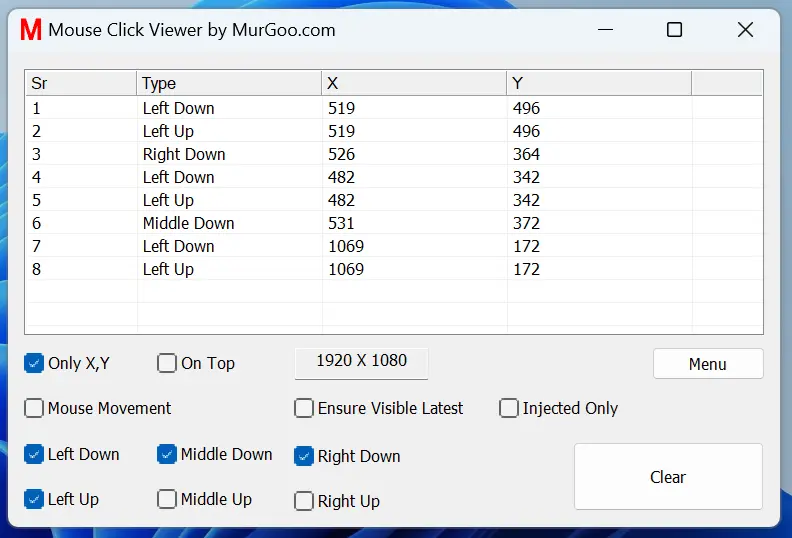
The mouse actions are displayed in a list with the X and Y coordinates of the mouse action and are numbered, making it more advanced than Mouse Click Counter. Mouse movement actions can also be displayed in the list along with their screen coordinates. You can also set this application to stay always on top for easy visibility.
This Mouse Click Viewer also allows you to view only injected or simulated mouse actions, which can be handy when you are using Windows automation software to automate mouse clicking or movement. It can be helpful because manual mouse actions will not be displayed, allowing you to analyze and debug the mouse actions automated or simulated by the software. The mouse actions are displayed along with their screen coordinates and a small screenshot of the screen area around the mouse cursor position. Viewing only simulated mouse actions can help determine which mouse click was or was not performed in error by the mouse clicking script or software.
Use Mouse Buttons as Shortcuts
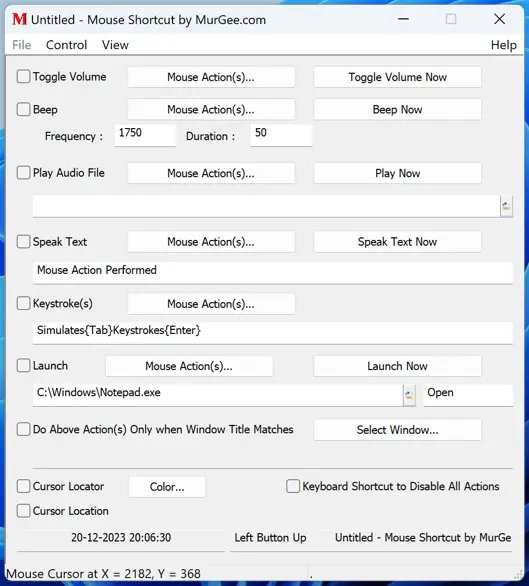
Mouse Shortcut Software can be used to perform actions like launching an application, speaking text, simulating keystrokes, etc. This mouse shortcut software application utility also allows you to view the current mouse cursor location, and you can even configure a mouse cursor locator to locate the mouse cursor.